Showing posts with label tools. Show all posts

Friday, May 22, 2009

Coolest. Tool. Ever.

I’m struggling with how to best start this post. Here are a few possibilities:

  • I like to think that I’m a hard person to impress. But…
  • I swear at my computer many times a day, but usually in anger and almost never in delighted surprise.
  • Someone deserves a raise.
  • Holy crap!

All of them apply, so you can take your pick.

But what am I talking about?

I’m talking about the DocumentReflector tool that’s included with the Open XML Format SDK v2.0.

You see, I’ve been playing today with a few Office development tasks today for a work-related project. I’ve never looked too closely at working with the Office Open XML file format before this week; I’ve read white papers and such, but until you start writing your own code you never really “get” what an API is all about. After a few false starts and many searches, I was less than impressed.

But then I discovered DocumentReflector. This is a stand-alone SDK tool that will (wait for it) let you open an Office Open XML document, select a subset of the document or the entire document and it (here it comes) displays the C# code that will create it.

Holy crap indeed.

I’m sure I’ll be swearing at this amazing tool before the weekend is over (the new wears off pretty quickly for me) but today whoever built this app is officially my hero.

Edit: I almost forgot to add – there’s a great overview of using this tool on Erika Ehrli’s blog, here.

Now I can’t help but ask why we don’t have a tool like this for SSIS packages. Wouldn’t it be great to point a utility at a DTSX file and have it output the code required to build that package through the SSIS API? ;-)

Friday, January 16, 2009

Loving Windows 7

I installed the public Windows 7 beta on one of my laptops early this week. This is a laptop that I use all the time when I’m at home (I love the keyboard, so I sit at this one and Remote Desktop into my other machines) but it’s been running Windows XP because Windows Vista never ran particularly well on its 2004-era hardware. And as is always the case when working with a pre-release operating system, there is both good news and bad news.

Let’s do the bad news first:

  • I’m traveling this week and next, so I only had two days to play with new features before heading out on the road.
  • I have a bunch of demos I need to do next week at the MCT Summit in Redmond, so I can’t blow away the Windows Server 2008 install on my demo laptop and replace it with Windows 7 until the Summit is over.
  • That’s about it for the bad news…

The good news is much longer, so I’ll just hit on the highlights:

  • Windows 7 runs faster and better than Windows XP ever did, even with the same software running. I’m vastly impressed by how well it runs, and I can’t wait to get it installed on more modern hardware.
  • It looks and feels great, with all of the nice features of Windows Vista (I love Vista search and some of the Explorer enhancements that I miss so much when I go back to Windows XP or 2003) and is more usable (and just plain prettier) as well.
  • Windows 7 automatically detected my Nvidia video card and downloaded drivers for it. This may sound trivial (and isn’t really something for which i can give credit to the Windows 7 team) but the new driver finally works. For all previous operating systems and driver versions, this video card has always displayed any video being played in full-screen mode on the secondary monitor. This meant that I could not work on one display while having a video (any video – not just Manowar videos) play on the other. With the new driver, this is no longer the case, and video finally works the way that it should.
  • Did I mention it’s amazingly fast? ;-)

But the thing that prompted me to post this article is not my own experience. I found today a list of “Windows 7 Secrets” published by Tim Sneath here: http://blogs.msdn.com/tims/archive/2009/01/12/the-bumper-list-of-windows-7-secrets.aspx. This includes a ton of keyboard shortcuts (one of my favorite tools) and ways to work with the new OS features that you’d be unlikely to stumble across on your own. Definitely check it out the next time you sit down at your Windows 7 machine, or if you’re wondering whether you should make the move…

Thursday, December 18, 2008

Better File Rename

This is just a random tool recommendation - I've been meaning to post it for months, but have never made the time. Well, a meeting just finished early, so the time made itself.

I've love this tool: Better File Rename

It's a Windows shell extension that gives you a ton (maybe more) of batch file renaming options. Right-click on a folder or a group of files and you can:

  • Add characters to the beginning of a file
  • Change the file extension
  • Add sequence numbers to the file name
  • Add date/time stamps to the file name
  • Replace characters or string patterns in the file name
  • A staggering number of other possibilities

I've been using this delightful little tool since 2002, and it works great on Windows XP, Windows Vista, Windows Server 2003 and I assume Windows Server 2008 as well, although I've never personally tested it. If I ever rebuild my primary laptop to run Server 2008 then I'll know, because this app is one of the few 3rd party "must have" utilities that I install whenever I rebuild my main machine.

Ok, that's that. Check it out - download a trial version and see if it rocks your world too. Especially with all of the Christmas photos you'll soon be taking, you know you want it...

Friday, December 5, 2008

Connection Strings

This is just a little reminder for myself as much as for anyone else. There's a great resource online at http://www.connectionstrings.com/ that lists the syntax for hundreds of different types of data sources (SQL Server, Oracle, Excel, Active Directory, etc.) complete with examples and general rules/guidelines for constructing them. If you're ever in a situation where you need to build a connection string without a GUI to help you, I've never seen a better reference. Check it out.

Thursday, December 4, 2008

ThinkPad Keyboard Madness

I own lots of laptops. After being an independent software development and BI consultant for many years, I've assembled quite the collection. I have Dells and Toshibas[1] and have had Gateways and HPs as well. My little home office is filled with them[2].

I also have a Lenovo. It's a ThinkPad X300, and if I never needed to type on it, it would probably be one of my favorite computers. It's light, it's powerful, it's solid, and just about everything you could want a laptop to be.

But I do have to type on it. And because of this, I swear. A lot. In fact, I swear so much I just may need a new chart.

Why all the swearing, you ask? Well, before I answer, please take a look at your keyboard, down in the bottom left corner. Go on. I'll wait.

There.

You see, if you're typing on a ThinkPad, you'll probably[3] notice that the bottom left key is the control "Ctrl" key, and to the right of that (if you're using a laptop anyway) is the function "Fn" key.

Still with me? Good.

Now if you were horribly evil in a past life and are currently being punished by having to type on a ThinkPad, you'll instead notice that the Fn and Ctrl keys have been reversed. Swapped. Inverted.

And this is insane!

Ok, you ask - what's the big deal? Who cares?

First and foremost - me. I care a lot. You see, I'm a developer. And while I don't buy in with the whole developer stereotype[4] I definitely am a very keyboard-centric computer user. I prefer to use my keyboard whenever possible, and there are literally thousands of times each day when I perform some task that utilizes a Ctrl+Key keyboard shortcut. For example, you may be familiar with some of these well-loved productivity enhancers:

  • Ctrl-C = Copy
  • Ctrl-V = Paste
  • Ctrl-Arrow (Left or right) = Jump one word in text
  • Ctrl-Shift-Arrow (Left or right) = Jump and highlight one word in text
  • Ctrl-F4 = Close current tab or child window

I could go on and on and on. A significant portion of the most common Windows keyboard shortcuts involve the Ctrl key.

Now at this point you're probably asking "But Matthew, since this incarnation of ultimate evil that Lenovo uses for a keyboard inverts the Ctrl and Fn keys, what do these keyboard shortcuts do if your finger, trained through decades of computer use, hits the Fn key instead?"

Funny you should ask. This is what happens:

  • Fn-C = Nothing
  • Fn-V = Nada
  • Fn-Arrow (Left or right) = Zip
  • Fn-Shift-Arrow (Left or right) = Zilch
  • Fn-F4 = Puts the computer to sleep!!!!!

That's right. If you try to close out a child window and let your fingers follow the paths that are ingrained deep in their muscle memory, you have just effectively closed the lid on your accursed laptop and have shut it down. Even if you're in the middle of working. Even if you're in the middle of a giant download that then needs to be restarted. Even if you're connected remotely to the corporate network and you then need to dig out your smart card so you can re-connect. Even if you're hosting a LiveMeeting that your boss' boss' boss is attending. Yeah. Even then.

I could go on. I could rant about how there is no way to re-map these keys, because the Fn key isn't exposed to the standard Windows keyboard APIs. I could rave about how the Esc key is on its own row above the function keys (F1 through F12) so that when I try to hit F2 to rename a file I get F3 (search) and when I attempt to hit Esc I get F1 (help) instead. I could blow my top and go on and on about how when I use my other laptops (which outnumber my lone ThinkPad 7:1 at this point) the lessons that my poor fingers are being forced to learn are tripping me up when I use normal keyboards. I could go on and on and on...

But I won't. Because it's far too late for a rant like this to go on any further. Instead, I'm going to fill out a little survey that Lenovo has put together. And I encourage you to do the same. Please, please, please do the same.

I think it's great that Lenovo is conducting such a survey. But I think it is very frustrating that they're just getting around to asking. Take a few minutes and Live Search around on "ThinkPad" and "keyboard" and you'll see what I mean - dozens of other frustrated ThinkPad owners have poured their anguish into the ether as well. (My favorite one is here.)  And even more frustrating, the survey doesn't even mention the Fn and Ctrl key positions - it focuses on the Esc, Home, End, PgUp and PgDn keys instead. Ugh...

But hopefully they're listening now. This is what I told them at the end of my survey, in response to the question "Of the keys that vary between different key layouts, for which keys are you most concerned about their location (e.g. Esc, Home, End, PgUp, PgDn, others, etc.)?":

"The Ctrl key MUST be in the bottom-left corner, immediately below the Shift key. If this is not the case in the hardware then there MUST be a way to re-map these keys in the OS or BIOS. Yes, you need to keep your historic users happy, but you also need to understand the basic mechanics of using keyboard shortcuts and the PAIN that users feel when attempting to adjust to the ThinkPad's non-standard layout. Until one of these solutions is implemented I will never buy or use another ThinkPad."

And I won't. It pains me that much. There are lots of small, light, powerful laptops out there just waiting for my hardware budget, and only the ThinkPad comes with a keyboard that makes my typing life miserable every day. It's a show-stopper for me, and I will never buy another laptop without looking at the keyboard first.

But now it's time for me to sleep. And hopefully to dream of non-ThinkPad keyboards...

[1] Which is another story, but probably not one I'll rant about just yet...

[2] And, in the winter, heated by them.

[3] I saw "probably" simply because I have not owned one of every type of computer ever made, but for my own personal sample "probably" means 100% of the time.

[4] For example, I dislike Red Bull, don't drink Mountain Dew, and I'm tall, good looking[5] and very comfortable around members of the opposite sex. ;-)

[5] Humble, too.

Tuesday, August 26, 2008

SQL Server Sample Install Epiphany

(Warning - this post has turned into a long drawn-out rant. If you want to skip to just the useful stuff, scroll down to the third and final bulleted list way down there at the bottom. I won't mind, I promise.)

One "new feature" of SQL Server 2008 that has always seemed of dubious value (at best) to me is the way that the product samples have been removed from the actual SQL Server installer. If my memory serves me correctly[1] the history of SQL Server samples (namely the sample databases) has gone something like this:

  • SQL Server 2000 and earlier: Sample databases automatically installed with the RDBMS. Users must manually delete them post-install if they're not wanted.
  • SQL Server 2005: Sample databases part of RDBMS install, but are not installed by default - they must be manually selected by the user.
  • SQL Server 2008: Sample databases not included with the RDBMS installer at all. Users must wade through dozens of poorly-documented downloads on the CodePlex web site, hope they get the installers that include the databases that they need, install them, then struggle to find out what files the installers put where.

Ok, so perhaps that last bullet isn't particularly fair[2] but it does sum up my personal experiences with getting samples working with SQL Server 2008. If you go to the Releases page for the SQL Server 2008 samples project on CodePlex you'll see 28 (twenty eight!!) different MSI installers that you can download. And when you install any one of them, it's pretty much a mystery what files are installed and where you can find them. In my book this is quite a big step backward.

To be completely open, I realize and admit that I'm not the typical SQL Server user. I do a lot of training, presenting and writing on SQL Server topics, and the samples are a big part of these activities - because without them I'd have to build samples of my own. And of course once the SQL Server samples are installed, they're great - it's hard to find anything bad to say about the content itself.

Anyway, today I've been spending some time preparing for a few presentations that I have on my schedule in the next month or so, and have needed to go back out to the CodePlex web site to download (again) the SQL Server 2008 samples. When I was faced (again) with the 28 (twenty eight!) different installers, I groaned and hung my head. "Why?" I moaned, "Why can't they just give us the expletive expletive SQL scripts and source code instead of these accursed MSI files?!?!?"

Oh.

Oh yeah.

Oh yeah, one of the installers is named "SQL2008.AdventureWorks_All_DB_Scripts.x86.msi" - that sounds useful. How could I have missed this?

In fact, I've found that to get to where I need to be, there are really only two things I need from CodePlex:

  • That SQL2008.AdventureWorks_All_DB_Scripts.x86.msi file, which you can get here.
  • The "All Microsoft Product Samples in a Box" download, which includes "all Microsoft SQL Server product samples (except for the sample databases, due to size constraints) and does NOT include any community projects" and which you can get here.

The nice thing about this second download is that you can choose to download it as a zip file, which means you can extract it to wherever you want to put it. And that, for me, is key.

The DB installer MSI is another matter entirely. When you install it, there is no indication of where it's putting the DB scripts, nor does it give you the option to choose a destination directory. I looked in the C:\Program Files\Microsoft SQL Server\100\Samples folder - that makes sense, right? Wrong. There's nothing there but a license, a readme file which references the C:\Program Files\Microsoft SQL Server\100\Samples folder where the samples aren't located, and a shortcut to the CodePlex project.[3] Ugh.

Instead, the samples are installed in the C:\Program Files\Microsoft SQL Server\100\Tools\Samples folder (note the inclusion of Tools in the folder path) where, if you're like me, you'll never think to look.

Ok, this post has turned into a rant, which was really not my intent. Please let me summarize:

To get the complete samples for SQL Server 2008, perform the following steps:

Hopefully this will help someone out there avoid the frustration I've felt from time to time when working with the "decoupled" samples...

[1] If you say this in the voice of Chairman Kaga it sounds like a cool pop culture reference, instead of just an admission that I have trouble remembering things that happened before I started typing this blog post - try it out and you'll see!

[2] Especially seeing the huge improvements that the samples owner David Reed has made over the last few months leading up to SQL 2008 RTM.

[3] No, I have not yet filed a Connect item on this readme file. Typing up this rambling blog post took so long that I didn't have time to actually file a useful bug as well...

Saturday, August 16, 2008

BIDS Helper 1.3 Release

Just a quick update on this hectic weekend day: The long-awaited 1.3 release of the best and most important add-in for Microsoft BI developers - BIDS Helper - has been released. It has a plethora of new features and supports both SQL Server 2005 and SQL Server 2008.

Download it here: http://www.codeplex.com/bidshelper/Release/ProjectReleases.aspx?ReleaseId=9557

Now.

Tuesday, July 1, 2008

Outlook and Time Zones

I travel quite a bit for work (and occasionally for pleasure) and I like to track my itineraries in Outlook so I don't lose track of things and miss my flights. This also allows me to have everything at my fingertips on my Windows Mobile phone, which makes my life so much simpler.

The problem with this is that most of my travel crosses multiple time zones - I will be departing from New York, but I may be landing in Seattle or Denver or Frankfurt. And that means that I need to "do the math" to ensure that the times I'm entering into my Outlook appointments are appropriately adjusted for the differences between my local time zone and the time zone for wherever I will be landing.

But not any more.

I've just discovered[1] the "Time Zone" button in Outlook 2007:

You know where I'll be! [2]

When you click on the Time Zones button, two drop-down lists appear, one for the time zone of the appointment start time, and one for the time zone of the appointment end time. How cool is that? This is going to save me so much time (and aggravation, because there few things more annoying than suffering because of your own mistakes) in the weeks and months ahead.

Now if I could just figure out how to make it so that these drop-down lists are always visible by default...


[1] Yes, this is the appropriate time to let me know that this has been there since Outlook 2000 or the like - I am often the last to know.

[2] I'm not going to show you one of my actual flight itineraries (you never know what stalkers are out there ;-) but I will show one of the highlights of the yeah - Manowar headlining the Magic Circle Festival next month in Germany. Will you be there too?

SSIS - Changing Variable Scope

If you read my last blog post about SnagIt, you already know that when I was creating the package for my "putting dates in file names" blog post, I inadvertently created the variables at the data flow scope, when I needed to create them at the package scope instead. And if you've spent much time working with SSIS, you know that this means I had to delete all of the variables and re-create them, setting all of their properties and expressions all over again.

What a pain. The SSIS tools in Visual Studio will let you change just about any property of a variable, but not the variable scope. There should be some tool to do this, right?

Right!

Well, this is a new feature that is being added to the BIDS Helper Visual Studio Add-In project on CodePlex. Check out the details here: http://www.codeplex.com/bidshelper/Wiki/View.aspx?title=Variables%20Window%20Extensions&version=2

As with quite a few interesting recent additions to BIDS Helper, this feature is not yet part of a major release, so you'll need to download the source code and build it yourself, but this is relatively simple. Hopefully the project team will have version 1.3 locked down and ready for public release soon, but in the meantime you can get it if you want it. I just wish I'd had it when I was building that sample package...

SnagIt++

I blogged on TechSmith's delightful SnagIt application almost a year ago and have been using it daily ever since. SnagIt is one of those applications that's kind of hard to describe (why would anyone spend money for something like this when you get Print Screen and Paint for free with Windows, right?) but once you start using it you wonder how you ever lived without it. Every blog post that you've seen here[1] that has screen shots has been written with the help of SnagIt.

And now it's gotten a lot better.

Last month TechSmith released SnagIt version 9, with a whole slew of new features and capabilities. There are too many to list here, so you can check out the What's New page if you're interested - the thing that blows me away is the capture organizer - when you capture an image, it goes into a tray where you can save it, edit it, delete it or just plain ignore it if you're not ready to do anything else just yet. This provides an amazing degree of flexibility, and makes working with a large number of captures (such as documenting a I workflow through still images) a trivial task.

As a case in point, my last blog post has a total of 19 screen captures, some of which were taken out of order[2]. Think about how you would traditionally do that; if you're like me,this would involve saving the files with sequentially-numbered file names, and then re-naming them as necessary. With SnagIt 9 this was simply a matter of capturing all of the images I thought I might need, deleting the ones I didn't need, and then saving the ones I decided to use once all of the writing was done. I love it.

And the best thing is that TechSmith offers a free trial version for download, and the full version is only $49.95. And no, they're not paying me anything for this recommendation - SnagIt is just one of those tools that I use every day that not enough people seem to know. Check it out and see for yourself!


[1] Or forum posts, book chapters, or articles - anything!

[2] I inadvertently created the variables I used for this post at the wrong scope, so I ended up going back and deleting and recreating them, and had to re-capture all of the images of the Variables window. What a pain.

Tuesday, June 17, 2008

Did you Miss PacMan?

At the Microsoft TechEd conference in Orlando earlier this month I mentioned my PacMan project on CodePlex to several different audiences, including during each of my breakout sessions. PacMan is my "SSIS Package Manager" utility that I've built in C# to make my own life easier, but enough people expressed interest in it that I shared the utility online with hopes that it would make their lives less painful as well.

Well, although I may have succeeded to some extent, the very nature of PacMan probably limits its analgesic potential. This is because PacMan is:

  • A "rough and dirty" development utility. This is code that I, as a developer, wrote for myself, as a developer, to use. This means that I was focused on solving short-term tactical goals, and not on building a general-purpose reusable framework for solving longer-term strategic goals. To put this another way, I expected to have to go in to PacMan and write a little code any time I wanted it to do something; I didn't have the time, energy or inclination to write all of that code up front.
  • Largely undocumented. Other than the source code itself, there is little help for developers who want to start using PacMan for their own purposes.

Sadly, my schedule is highly unlikely to allow me to address the first point at any time in the foreseeable future. PacMan will likely always remain a "rough and dirty" utility, because the same work that keeps it valuable to me also keeps me too busy to refactor and refine it into something better.

But the second bullet is something I am likely able to do something about sooner rather than later. In fact, I plan on doing a little something about it today. Right now. Right Here:

PacMan Overview:

The whole point of PacMan is to perform batch operations on groups of SSIS packages. That's it. Because SSIS does not provide any built-in features for working with multiple packages at one time, this was something that I felt was sorely needed. Specifically, I needed a way to add a new variable to close to 100 packages. Obviously manually updating the packages wasn't an option, so PacMan was born.

The PacMan utility is implemented in a Visual Studio solution with two projects: a Class Library (DLL) Components project and a Windows Forms UI project:
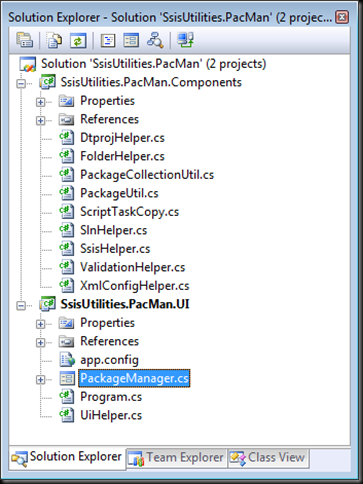
Figure 11

The Components project implements a small set of classes that encapsulate access to objects in the SSIS .NET object model. The PackageUtil and PackageCollectionUtil classes are the two most significant ones, as we'll see later on.

PacMan UI:

The PacMan UI is exceptionally simple.[1] At the top of the form there are four options for selecting the scope of operations for whatever work is going to be performed - a single package, a single Visual Studio project, a Visual Studio solution containing one or more projects, or a file system folder containing multiple subfolders and packages. At the bottom of the form there is a set of tabs; each tab contains data entry controls for initiating a specific operation that will be performed on the packages that are in scope.
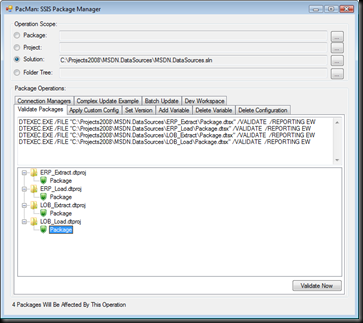
Figure 10 

PacMan Components:

As mentioned above, the two main classes in the Components project are the PackageUtil and PackageCollectionUtil classes.

The PackageUtil class is essentially a thin wrapper around a Microsoft.SqlServer.Dts.Runtime.Package object. The PackageUtil class exposes a Package object through its SsisPackage property, and also exposes a set of properties and methods that make manipulating the package more straightforward.

The PackageCollectionUtil class is a List of PackageUtil objects, along with a set of properties and methods for manipulating the packages in the List.

When an operation scope is selected through the PacMan UI, an instance of the PackageCollectionUtil class is created and stored in the class-level packages variable which is in scope and available anywhere within the PacMan UI.

Most interesting scenarios in PacMan revolve around enumerating the packages collection and doing something[2] with each of the packages it contains.

Using PacMan:

The basic pattern of using PacMan goes something like this:

  1. Get the PacMan code from CodePlex and open it in Visual Studio.
  2. Add your own code to PacMan. You can do this either by adding a new tab to the UI or reusing an existing tab. There is an existing "Dev Workspace" tab that I use for experimenting or for one-off efforts when I don't want to be bothered building a UI for what I'm working on.
  3. Feel good about accomplishing so much with so little effort.

Ok, so it may not be quite that simple all the time, but that's all I can think of right now. The nice thing is that the packages collection takes care of most of the hard work - all you need to do is worry about working on a single package at a time and PacMan does the rest of the work.

PacMan Use Case Example 1:

A typical example of using PacMan may look like this. The code below is used to rename a connection manager in all selected packages:

private void buttonSample_Click(object sender, EventArgs e)
{
    string oldName = "LocalHost.AdventureWorksDW";
    string newName = "AWDW";

    foreach (PackageUtil p in packages)
    {
        if (p.SsisPackage.Connections.Contains(oldName))
        {
            p.SsisPackage.Connections[oldName].Name = newName;
        }
    }
    packages.Save();
}

It doesn't get much simpler than that, does it? Imagine trying to reliably rename objects across a project or solution that contained dozens or hundreds of packages.

PacMan Use Case Example 2:

Some operations may require more code that what was shown above. For example, I recently needed to review a set of several hundred packages to ensure that there were no duplicate package IDs. To do this I updated the PackageCollectionUtil class to add a GetPackageIDs method that returns a SortedDictionary collection of the package IDs and the names of the packages that use them. The code looks like this:

public SortedDictionary<string, List<string>> GetPackageIDs()
{
    SortedDictionary<string, List<string>> ids =
        new SortedDictionary<string, List<string>>();

    foreach (PackageUtil package in this)
    {
        string id = package.SsisPackage.ID;
        if (!ids.ContainsKey(id))
        {
            // New key - add a new dictionary
            ids.Add(id, new List<string>());
        }
        // either way, add the package path
        ids[id].Add(package.PackageFilePath);

    }
    return ids;
}

Then, in the UI code, I could simply call this method and update a TreeView to display the results to the user:

private void buttonEnumerateIDs_Click(object sender, EventArgs e)
{
    if (packages != null)
    {
        SortedDictionary<string, List<string>> ids =
            packages.GetPackageIDs();
        BuildPackageIdTreeView(ids);
    }
}

private void BuildPackageIdTreeView(SortedDictionary<string, List<string>> packageIDs)
{
    treeViewPackageIDs.Nodes.Clear();
    foreach (KeyValuePair<string, List<string>> id in packageIDs)
    {
        if (!checkBoxShowOnlyDuplicates.Checked || id.Value.Count > 1)
        {
            // add a node for the ID
            TreeNode newNode = treeViewPackageIDs.Nodes.Add(id.Key);
            // add a child node for each package
            foreach (string packagePath in id.Value)
            {
                newNode.Nodes.Add(packagePath);
            }
            newNode.Expand();
        }
    }
}

Summary:

As you can see, PacMan provides a framework for developers to more easily perform operations on groups of packages. Those developers will still need to write code, but the scope and complexity of the code should be significantly reduced.

Please expect to see a few more PacMan-focused posts in the days and weeks ahead. There are some features I showed off at TechEd that can probably use some additional explanation, so now that I've laid the framework for further discussion, I can start work on those posts.

In the meantime, if you have any questions, comments or suggestions on PacMan, please feel free to post them here or to the discussion forum on the PacMan site on CodePlex. I can't guarantee that I'll respond to each one in a timely manner, but I'll do my best. Enjoy!


[1] I was going to write "ugly" here, because I know what it looks like. A UI designer I'm not.

[2] Yes, I suppose this goes without saying, as doing nothing is not a particularly interesting scenario, but the "something" in question up to the developer.

Tuesday, June 10, 2008

SSIS and EBCDIC

First and foremost, thanks to Douglas Laudenschlager for bringing this to my attention.

So with that out of the way, I'd like to point out that Amino Software have finally released their Lysine product, a custom SSIS component that enables the use of EBCDIC data in the SSIS data flow. Here's the blurb:

Lysine is an SSIS (SQL Server Integration Services) custom component that enables the inline conversion from EBCDIC (including redefines and packed decimal fields) into an ASCII byte stream to use within the pipeline in your SSIS package.

The major benefits of Lysine are two-fold:

  1. It saves you from having to write a pre-processor to unpack and convert the binary data.
  2. It prevents you from having to pre-process the data saving an extra, and many times costly, trip through the data.

Features

  • Conversion of EBCDIC Field Types
    • Comp3
    • Zoned
    • Redefines
    • Occurs
    • Occurs Depending On
  • Realtime preview of data as file definition is setup in an intuitive UI
  • Inline processing of data -- a single pass through the data.

Now normally I would not simply copy and paste a software vendor's marketing blurb into my blog - not without getting some sort of kickback anyway - but since so far as I know there is no other software on the market that solves this problem, and since this problem seems to come up pretty often, I thought that this was a good time to make an exception. It's not free (and for $1,499 some might argue that it's not cheap either) but if you need to convert EBCDIC data to ASCII data, odd are it will pay for itself pretty quickly. I haven't had the time to run it through its paces (and with a little luck I won't see any EBCDIC in the near future) but if you're struggling with this pain today you might want to check it out. Enjoy!

Monday, November 19, 2007

BIDS Helper 1.2 Released

BIDS Helper is a CodePlex project that delivers a set of Visual Studio add-ins for developers working on BI projects. It's been around for a while, but until now has not had any SSIS-focused features.

Until now!

The BIDS Helper team has just released version 1.2 of their tool, and it now includes (in addition to a bunch of SSAS-related stuff as well) these new SSIS features:
  • Create Fixed Width Columns - Simplifies the definition of a fixed width flat file connection manager
  • dtsConfig File Formatter - As far as I can tell, this is just another shortcut for the ctrl-k, ctrl-d "prettify" keyboard chord that is built into Visual Studio
  • Expression and Configuration Highlighter - Color-codes tasks and connection managers that have properties set by configurations or expressions, making your packages more self-documenting.
  • Expression List - Adds a new "Expression List" window to Visual Studio's "Other Windows" menu; this window displays all expressions defined within the package.
  • Smart Diff - Provides a pre-processor for the built-in VSS or TFS differencing tools, to make it easier to diff two DTSX files' XML content.
All in all, this looks like a major step forward in the SSIS developer's toolbox. The Expression and Configuration Highlighter and Smart Diff features in particular provide functionality I have often wanted, and even if they're not exactly what I would have liked, they're still better than what we had before. Check it out!

Saturday, November 3, 2007

SSIS Raw File Viewer

SQL Server Integration Services has its own high-performance file format for persisting data - it's the "raw file." The downside of these files is that they can only be used from within an SSIS data flow - there is no other tool to open them.

Or is there?

Simon Sabin has developed a "Raw File Viewer" and has made it available for a free download - check it out here: http://sqlblogcasts.com/blogs/simons/archive/2007/01/11/SSIS-Rawfile-viewer---now-available.aspx

Yes, I realize that this is really old news as he posted this back in January (and it is now November) but as it has managed to slip under my radar for the last eleven months I figure that I'm not the only one who has missed it...

Thursday, November 1, 2007

CozyRoc SSIS Products

Although there is a "3rd party developer ecosystem" for SSIS components, it's not particularly active. I don't know if this is because there's no interest, if people just don't understand the platform well enough, or if the SSIS product group just did such a good job building the core platform that people don't see the need to turn to 3rd party vendors (or perhaps some other reason entirely) but I don't see a ton of add-on components out there.

But CozyRoc has just announced beta versions of a set of interesting-looking control flow and data flow components, including:

  • Package SSIS Connection Manager - Provides access to the current or different package at runtime.
  • Data Flow Source SSIS Data Flow Component - Very fast, non-blocking, in-memory data read from another data flow.
  • Data Flow Destination SSIS Data Flow Component - Exposes data from a data flow for in-memory read in another data flow.
You can check it out here (http://www.cozyroc.com/) - and they're free while in beta, so strike while the iron is hot.

Wednesday, October 31, 2007

PacMan is Loose on CodePlex!

PacMan - The SQL Server Integration Services Package Manager is a utility designed to permit batch operations on arbitrary sets of SSIS packages. Users can select a single package, a Visual Studio project or solution or a file system folder tree and then validate or update all selected packages in one operation.


And you can find it here: http://www.codeplex.com/pacman

PacMan is a utility that I developed primarily for my own use, and secondarily for use by members of my development team. Although I had always intended to share the PacMan utility with the SSIS community eventually, I kept pushing it back further and further since it wasn't "ready."

But my speaking schedule this month has convinced me that either it's never going to be ready, or else it's already ready. Maybe both. At various presentations this month in Stockholm, Sweden and here at home in Central New York I demonstrated PacMan to illustrate some of the things you can accomplish by using the .NET object model included with SSIS, and the response was an overwhelming "I want that!" from the seminar participants. I explained how this was a personal dev utility that wasn't really ready for prime time, and the interest didn't wane at all with that warning.

So here we are. I've done minimal cleanup, and the code isn't perfect (and there are very few comments, which is something that I would never allow to happen on a "real" project) but I could not find anything similar online, and I thought the best thing to do would be to share the code today instead of waiting to polish it before sharing it.

This is the first CodePlex project (or open source project in general) that I have started, so I honestly do not know how I am going to handle other project participants. I'll the first public alpha release is already available for download so everyone should be able to download the code to use (and tweak) on their own, but I don't currently know what I'll do when people want to contribute directly to the source code. I guess we'll find out when people ask.

Multi-Monitor Goodness

Do you use multiple monitors?

Do they have different resolutions?

Have you ever wanted to display different wallpaper images on each monitor, or to have the same image displayed appropriately (without cropping or stretching and the like) on both monitors?

Well, welcome to DisplayFusion (http://www.binaryfortress.com/displayfusion/)!

DisplayFusion is a free software utility that lets you quickly and easily manage multiple monitors. It does more than just give you control over the desktop wallpaper (although this is all I'm using it for today) - there's also a nice list of features related to managing window position across monitors with global hotkey support.

And did I mention it's free?

So if you answered yes to any of the questions above, you should download DisplayFusion and give it a try.

Monday, October 22, 2007

Ok, So We Fired Bob...

Have you ever had one of those moments where you needed to look across all of your Team Foundation Server projects to find every file that is currently checked out? I know I have, and when that moment comes around it is never a time of leisure - you always need to know right away because someone is breathing down your neck while you manually navigate through the project tree.

Thankfully, the fine folks at Ekobit have produced a free Visual Studio 2005 add-in called List Pending Changes Browser that will allow you to not only find pending changes across the entire tree, but also to filter by project path, including wildcard paths. It looks pretty slick.

And did I mention it's free?

So download it, install it and check it out!

Friday, September 7, 2007

Intemperate Templates

Even though I spend most of my time these days working in the SSIS and SSAS designers in Visual Studio [1] I still visit SQL Server Management Studio (SSMS) quite a bit. I was doing some work in SSMS this morning and was having trouble remembering the syntax for what I needed to do. Instead of looking things up in Books Online like I usually would, I went to the Template Explorer window, thinking to save myself a little typing.

Template Explorer is not visible by default (at least I don't think it is - I don't have a default installation of SSMS kicking around today) but you can hide it or show it by using the SSMS View menu. As you can see below, it displays a tree view of server and database objects, and within each folder in the tree is a list of templates.


When you double-click on a template (for this example I chose CREATE TABLE) you will get a new query window in SSMS that contains an example of the selected operation with for parameters that you can customize, as shown below.


At this point you can simply edit the text of the template in the query window, but you can also use a poorly-documented[2] feature of SSMS to automate the edits. As shown below, if you click on the SSMS Query menu, there will be a "Specify Values for Template Parameters..." menu option displayed.


When you select this menu option, you'll be presented with a dialog box that looks like this:


It's relatively simple to edit the template parameters, to end up with something that looks a little like this:


When you click OK, the text in the query window will be updated with the values you supplied, looking more like this:


The nice thing about this[3] is that if a given parameter (in this example, think of the table name and the PK field name) appears multiple times in the template, you need to only enter its value once in the dialog box for it to be replaced consistently in all places within the template, which is pretty darned handy.

Of course, there is still room for improvement. For example:
  1. The template parameter dialog box is modal, so if you forget something (like the name of the database[4]) you cannot navigate around SSMS to find it out.
  2. There are not nearly as many templates as you'd like to see, although to be completely fair you can also create your own custom templates.
  3. The templates that do exist are inconsistent in their design and quality. For example, if you use the CREATE TABLE template you get an "IF EXISTS" block so you can run the script as many times as you want. But if you use the CREATE SCHEMA template you don't get anything like this - you can either remember to only run the script once or else you need to manually add the logic you need.

Still, despite their flaws, SSMS templates are a good tool if you have occasional syntax failures like mine this morning. Enjoy!

[1] Or else in Word, Outlook, PowerPoint and Visio...

[2] In any event, I've always stumbled across it and not seen it documented anywhere, which is why when I remembered it this morning ("hey, isn't there a menu option somewhere?") I decided to blog about it.

[3] I point this out because nine times out of ten I'd rather edit code in a text editor and not in a dialog box, so there needs to be some real value here or else you're just adding work, not lessening it.

[4] Not that I would ever do this, of course...

Monday, August 20, 2007

Snag Better Bugs

I've been using TechSmith's SnagIt application for the last year or so [1], and it's been a great help when writing articles and documentation for my BI projects. If you've never seen it (and are too lazy to click on that link before continuing) you should think of it as PrintScrn++ or even PrintScrn#, since it's so darned slick. It has enough features and options that I'm not going to try to list them here (just visit the product page for that) but I just discovered one that truly opened my eyes: SnagIt can now natively output to Team Foundation Server.

That's right - capture your image, edit and tweak as necessary, and publish it to TFS, either as a new work item or as an update to an existing work item. They even have a video showing it in action.

How cool is that? It's never been easier to include screen shots with bug reports, feature requests and other work items. Being a Microsoft developer just keeps getting better...

[1] Thanks to my friend Chris Randall who pointed me to it - it's proven to be just about the best $39.95 I've ever spent.